Configuration and Troubleshooting
Color Mode
Click the mode button in the top bar to change the color mode.
Omarchy
OMARCHY uses the active Omarchy palette for app surfaces. Omadji reads this file when it is available:
~/.local/state/omarchy/current/theme/colors.toml
It updates the surface colors after a theme change. Text, controls, borders, selection, and status colors use Omadji's fixed palette for readable contrast.
Light and Dark
LIGHT and DARK use built-in palettes. Omadji saves the selected mode in the Qt application settings.
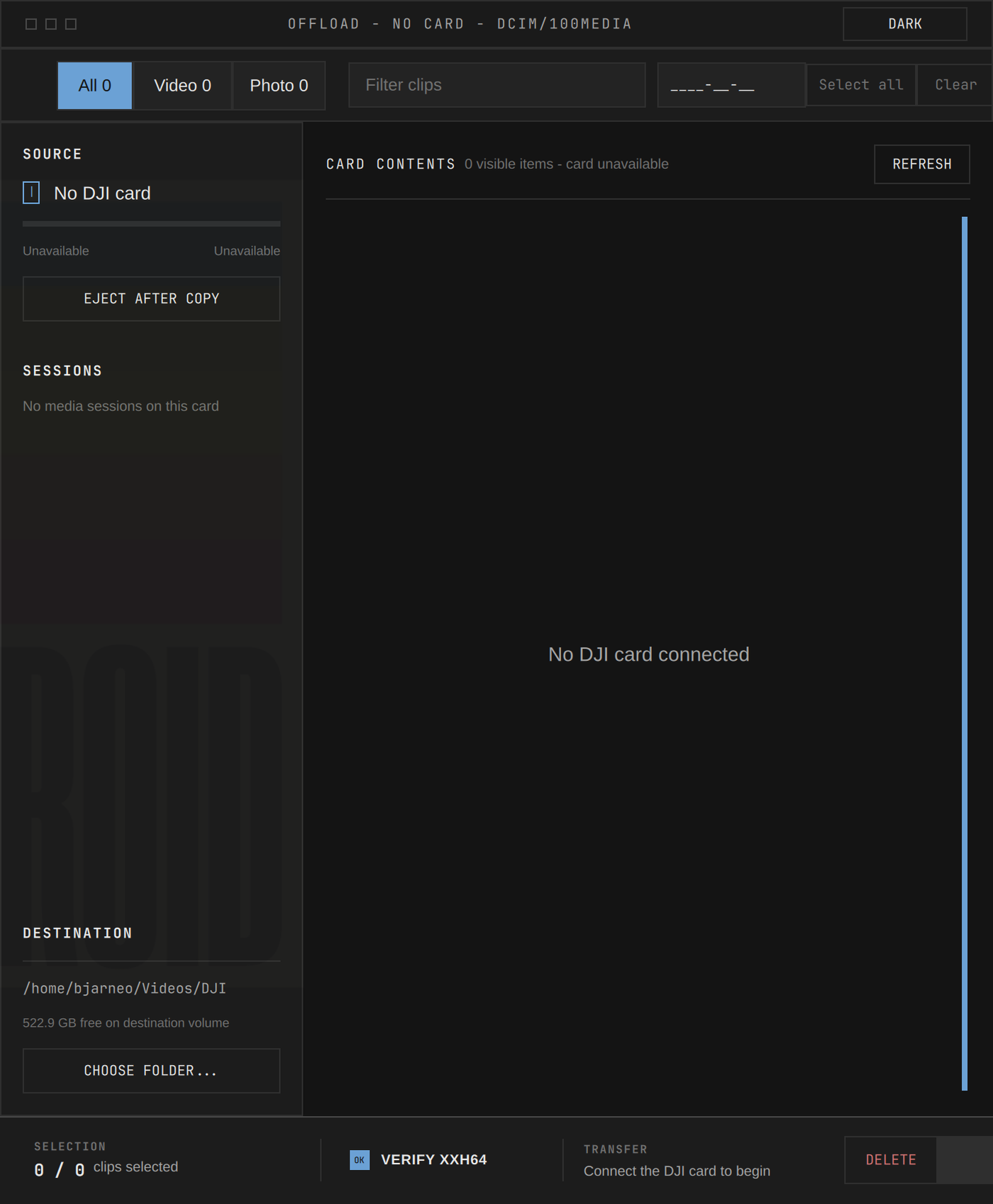
Card Is Not Found
Do these steps:
- Make sure the card is mounted.
- Open the card in your file manager. Confirm that you can read its
DCIMdirectory. - Click
REFRESHin Omadji. - Confirm that the card contains supported media files.
Omadji searches mounted storage volumes. It does not mount a card itself.
No Video Preview
Check that the card has a matching .LRF proxy file. Omadji uses the proxy for video preview.
Also confirm that Qt Multimedia can play H.264 or H.265 files on your system. Install the media codecs for your distribution when necessary.
Copy Verification Fails
Omadji uses xxhsum for xxHash64 verification. Install the xxHash package for your distribution, then repeat the copy.
Do not delete card files if verification fails. Check the destination storage, reconnect the card, and copy the affected files again.
Video Details Are Unavailable
Install FFmpeg so that ffprobe is available on your PATH:
ffprobe -version
If the command fails, install the FFmpeg package from your distribution.
Eject Does Not Work
Omadji calls udisksctl for ejection. Confirm that the tool is available:
udisksctl --version
The desktop environment can require authentication. Close other programs that use the card, then try the transfer without automatic ejection and eject the card from the desktop environment.